Introduction
IMPORTANT: HP LAPTOPS CAN BE CALIBRATED USING THIS METHOD, BUT IT IS NOT THE RECOMMENDED METHOD FOR "UEFI" HP LAPTOPS - THESE SHOULD BE CALIBRATED WITH THE HP UEFI diagnostic tool IF POSSIBLE. This method works in lieu of using the HP tool, but the FCC must be checked with the UEFI tool as the batteries do not show the health accurately in Windows.
If your laptop battery is older or reporting incorrectly, it may be possible to recalibrate the battery. This can correct the reported capacity or battery gauge to extend the life of the battery.
IMPORTANT: Recalibration only corrects the capacity on worn out batteries. There is no way to reverse the aging process.
For help understanding what calibration is, why it’s important, and how to calibrate batteries in other types of devices, check out the Battery Calibration Wiki.
Guide notes
- If your battery exceeds 30-40 °C (86-104 °F), REPLACE THE BATTERY!
- You will likely see a capacity decrease. This is good - not bad.
- Try to avoid using the laptop while it is charging. This may affect the calibration.
- Inconsistent reporting may indicate an EOL battery. Proper care delays this, but it cannot be avoided or reversed.
- If your battery is older, consider a ~10% discharge. A full discharge may kill the battery.
How to recalibrate the battery
- Charge the laptop to 100%. Use it until it shuts down and no longer turns on.
- See BIOS lockouts and EOL quirks for HP and Lenovo laptops.
- Immediately recharge the battery. Do not use the laptop if possible.
BIOS lockouts and EOL quirks
- (BIOS lockout) HP laptops have a 15% BIOS lockout and need to be bypassed for a full discharge. Immediately charge the battery once the laptop shuts off.
- All HP and most Compaq laptops.
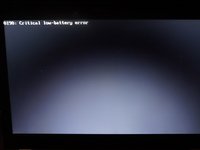
- (BIOS lockout) Some Lenovo laptops have a 7% critical capacity lockout (0190).
- Only occurs if the laptop shuts off early. Easily bypassed.
- (EOL quirk) Some Dell batteries hold incorrect data once the battery is heavily worn, or end of life. This issue self corrects with time. I have seen this on a few OEM Dell batteries. Notably, the NX31D (DOM unknown/2x with same issue) 65Wh (2014 DOM/E6440) and a RMJFW 65Wh Extended (2014 DOM/E6220). The 45Wh 34GKR is prone to it, but to a lesser degree (2014 DOM/E7440).
- (Firmware quirk) Some laptops will show 0% wear in BatteryInfoView - notably HP models. In order to access the data with HP, you must run the diagnostics (UEFI required if yours needs this). In some cases it can be found in the HP Support Assistant app by doing a battery check under the advanced info. This comes down to how HP encodes the battery data and how it is accessed and not a hardware fault.
What you need
-
-
Before recalibrating the battery, charge the battery to 100%. Take a note of the initial data.
 Ask FixBot
-
-
-
Use your laptop while it is discharging. You will want to do this until the computer shuts down, and if you are using Windows turn it on again until the laptop no longer turns on; this ensures a full discharge.
-
-
-
Every laptop has a different charge indicator. When your laptop is fully discharged, plug it in immediately. Fully charge the laptop.
-
-
-
Once you are finished, check the BMS data. The reported data should be corrected.
-
-
-
-
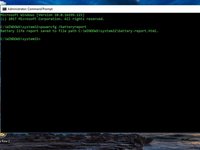
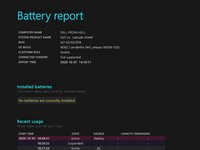
Run Command Prompt as an administrator. Enter powercfg /batteryreport.
-
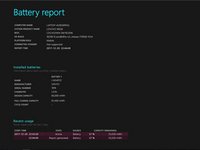
When the report is ready, you will receive a message stating where it is located. Check the data for consistency.
-
-
-
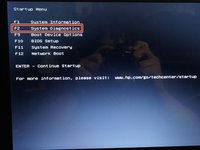
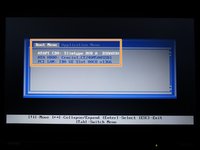
Plug the laptop in and turn it on; unplug it once it is on. Press ESC and select System Diagnostics.
-
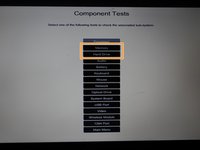
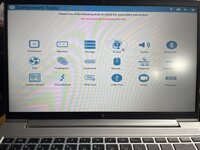
Open the Component tests submenu. Select Memory or Hard Drive.
-
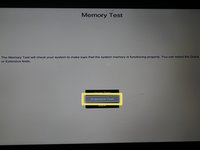
Select Extensive test. Choose Loop until error.
-
When the laptop shuts off, immediately recharge the battery.
-
-
-
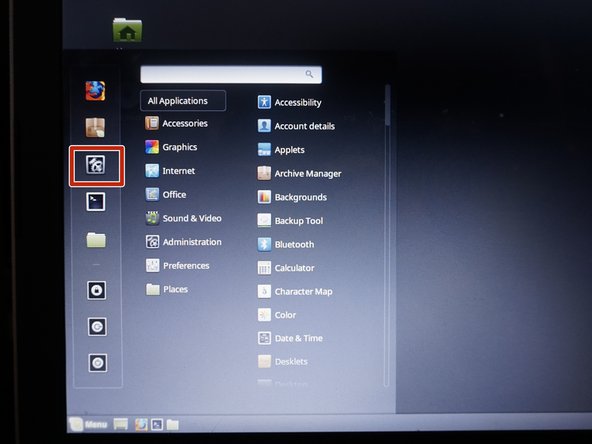
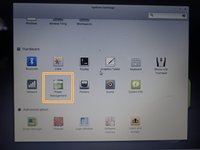
Boot the laptop into a live Linux Mint Cinnamon session. Open Settings and make the following changes:
-
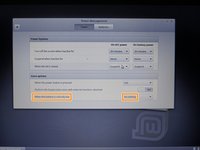
Open Power Management. Change When the battery is critically low to Do nothing.
-
Use the laptop until it shuts down. Everything from this session will be lost.
-
-
-
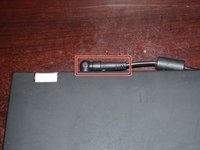
Plug the power adapter into your laptop. Allow POST to finish before unplugging the laptop.
-
Disconnect the laptop once the laptop is booted. Finish discharging the battery.
-
-
-
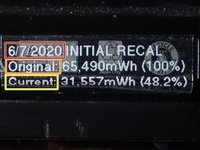
Note the date of the recalibration.
-
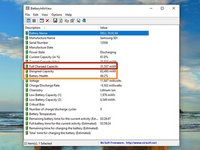
Note the original charge capacity (Designed capacity).
-
Note the current capacity of the battery (Full charge capacity).
-
-
-
In order to check the battery health on HP laptops, you MUST use the UEFI tool as HP hides the actual heath data from the operating system. The tool can be downloaded here and written to a USB drive, or a secondary partition on the laptop - the choice is yours.
-
Run the HP diagnostics and do the following to access the battery test:
-
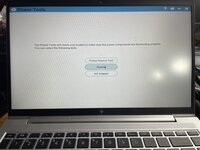
Locate Power in the diagnostics
-
Click on Battery and select Run once. This will take approx 2-3 minutes.
-
NOT SHOWN HERE Click on Battery details to review the health data.
-
-
-
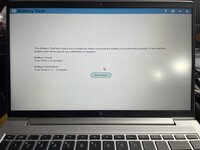
Click on Battery details and you will see the battery data, as well as the condition.
-
This data will tell you what condition your battery is in. The battery condition will be read in capacity left, as well as the overall health.
-
This data is helpful for gauging the condition of the battery. It provides a cycle count and the battery warranty status data, as logged by the pack in the laptop.
-















Cancel: I did not complete this guide.
20 other people completed this guide.

7 Guide Comments
Did not help at all.
I have a Windows tablet, pretty old one - previously it was showing 39% battery wear (it actually was holding for about an hour, battery itself is a bir inflated).
A couple days ago it hard crashed and wear level was reseted to 0%. Now some weird stuff started: turning off when reaching 14% battery charge, screen dimming etc.
Tried this method, and as I said in the beginning - it did not help, still shows 0% wear.
Late response, but some laptops and Windows based tablets (notably HP) always show 0% wear in Batteryinfoview. You need to go into the UEFI diagnostics or use use HP Support Assistant and grab it from the advanced data on HP. If it’s Dell, UEFI SupportAssist (newer systems) or ePSA (legacy).
Nothing to worry about, but another quirk like the EOL capacity reporting response on some Dell batteries. Added a note in the quirks section about this.
I’m curious, can we send command through the I2C interface from the laptop itself to the battery and do some calibration from there? is the built-in BMS has the capability to do that?
May battery charging shows 39% and it should be always plug in (windows 11) on Asus laptop.
hello, my laptop is reporting 36wh battery capacity, but it stops at 0 percent for 1 hour, after 36 is drained. before it was showing 25 wh and after charging cycles it increased to 36wh. it seems to progress slowly, but in your situation, it immediately read correct value
