Introduction
WARNING: This procedure is error-prone and carries a risk of short circuits. Only attempt this if a pre-built replacement is unavailable, hard to find, or cost-prohibitive (e.g., vintage ThinkPads or 3-wire Dell connectors). If a ready-made version is available, buy it instead—the cost is similar and it is much safer. If you can find a pre-tabbed cell, use this procedure instead.
GUIDE SPECIFIC NOTES:
- Note on Soldered Batteries: If your battery is soldered directly to the motherboard (as seen on some Toshiba models), this method is not applicable to your machine. You will need to desolder the old battery and solder a new one directly to the board, and the tab position is critical.
- SOCKET VS LEADED: This guide also only applies to laptops which use a pigtail cell, not ones with a socket on the board.
- Game consoles - bonus scope: The steps in this guide will work on PS2 Slim (except the SCPH-9XXX series) and PS3 models that use pigtail batteries. If yours is one of these, then this guide can be used to rebuild a dead battery. This does not apply to PS2 Fat models (socketed). Fat PS3s are mixed; check and see.
If your laptop's CMOS battery is dead and the OEM no longer sells new ones (and aftermarket ones are hard to find), you can take the dead battery apart and replace the bare cell so your laptop can hold the CMOS contents again.
Guide notes:
- Caution: To prevent a direct short when using aluminum tape, position the tabs slightly higher than the factory original. Use the minimum amount of tape required to secure the connection reliably.
- The cell doesn't need 100% coverage, but the bare metal must be sealed and protected. Use heatshrink, but test the cell first—heatshrink is harder to remove than liquid electrical tape if you need to redo a connection.
- Laptop disassembly isn't covered here. Check iFixit or the manufacturer’s site for a teardown of your specific model.
What you need
-
Tool used on this step:Digital Multimeter$59.95
-
Reliable name brand like Klein Tools, Southwire, Extech or Brymen (Greenlee in the US, or the BM235 from EEVblog in the US on Amazon - EEVblog also sells the BM786 and BM2257 but these ship from Australia)
-
Safe meter designed with proper fusing and a honest Cat rating
-
Optional — Ideally True RMS (sometimes known as TRMS) — easily met by 95% of CatIII meters at the $50+ range.
 Ask FixBot
-
-
-
Take a rag you do not mind ever using for non industrial purposes again as the rag will have Bitrex on it for life, and pour some alcohol on the rag -- a disposable shop cloth or cheap rag you only use in the shop may be better for this if you have one.
-
Clean the cell with the rag, cleaning both sides and making sure to get the edges.
-
After cleaning, your cell is ready to go. Do this 2-3 times to be sure the coating is eliminiated.
-
-
Tool used on this step:Digital Caliper$39.95
-
Measure the cell outside of the laptop with a digital caliper and determine the size -- IGNORE THE LAST INSINFICANT DIGIT - this will not help you search for heatshrink. Take this size to a site like https://www.digikey.com/ or https://www.mouser.com/ to buy heatshrink for your machine.
-
Take the final diameter, and search for Heat shrink tubing. Use the final diameter to search under the Inner diameter to locate compatible heatshrink.
-
On your preferred site, take the diameter and find the closest value - it should be on par with the caliper but if it is not available sizing down slightly is acceptable as sizing up can cause shrink issues.
-
-
-
If you are unsure if your CMOS RAM battery is dead, the usual clue is the inability for the machine to hold custom settings or the time. If you see a message like this, your battery is dead.
-
Probe the old cell with your DMM - if it is only registering a few mV or 0.00V, it is dead.
-
-
-
-
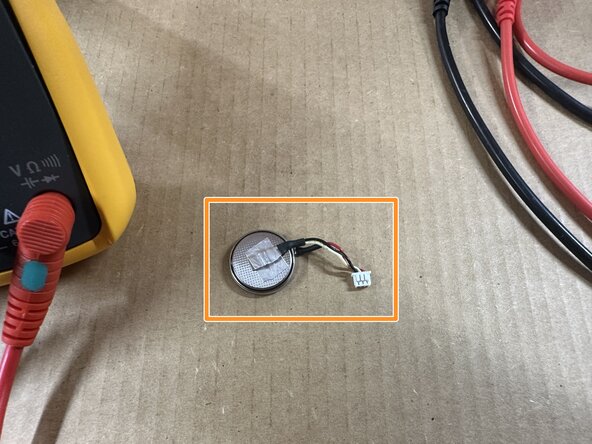
Take the battery apart and check out what cell you need. This may be difficult depending on the wrap used. If it is not clear, remove the wrap and check the cell part number (typically CR2016, 2025 or 2032).
-
-
-
After purchasing a battery, disassemble the CMOS battery, and remove the leads. Use caution not to heavily bend the tabs. Too much damage may make the lead unusable.
-
-
-
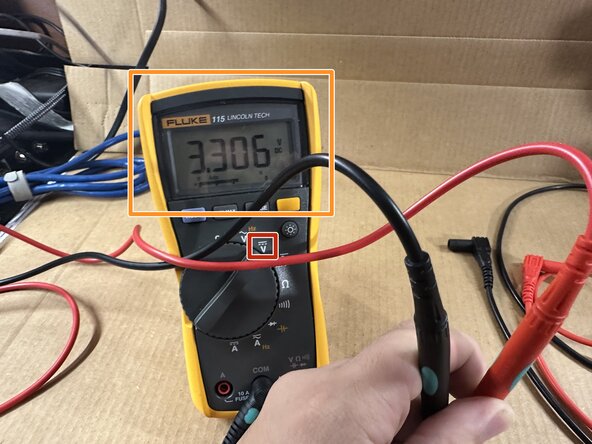
Put the meter in DC mode, the put the positive (red) lead on the red battery lead, and the black (negative) on the black battery lead. It should read ~3.1-3.3V for a new or very gently used cell without a load depending on your DMM. As long is it at >3V and holds stable for 10 seconds, the cell is fine and will retain the CMOS RAM settings.
-
-
-
After the polarity has been matched, tape the positive lead to the new cell. To remove the risk of a failed rebuild, start on the + side and cut the tape to fit comfortably.
-
After attaching the positive (+), attach the negative tab (-).
-
-
-
Before sealing the cell, do a final QC check. Make sure the tape is holding well and the tape is comfortably outside of any possible short potential due to the heatshrink potentially wrapping the tape and creating a short if has too much margin. You will need to cut and redo the deal if you are creating a potential short!
-
After verifying both leads are securely held onto the new cell and there is no voltage difference which indicates a short, put some heatshrink over the cell. Seal it with a heatgun, lighter or torch - do this on both sides.
-
-
Tool used on this step:Multimeter Test Leads$26.95
-
Once the battery is "built", put the meter in DC Volts mode (top solid line, --- at bottom), and test the final voltage. IMPORTANT: IF THE CELL DROPS <.02-.03V DC from the initial baseline or the voltage is unstable, there is a short. Disassemble it and start over.
-
Put the leads on the connectors - for batteries without visible testing points, you might need to use precision DMM leads like this. Hold the leads for 10 seconds and see if it fluctuates. If it does not the rebuild worked.
-
-
-
BEFORE installing the cell, check the voltage one more time to see if it's >3V (3.1V-3.3V). If it stays there for 5-10 seconds with your meter, it is safe to install inside the computer.
-


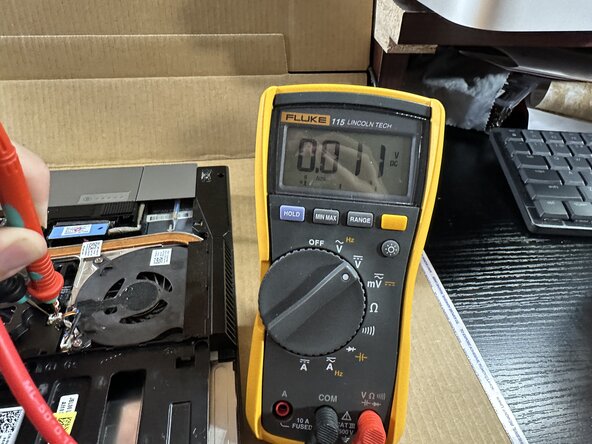








After building the replacement cell, install it in the notebook. Verify the battery works by setting the BIOS, powering it off and then removing the battery/AC adapter. If the CMOS memory is retained, your battery works.

